
Introduction
Learning how to compress PDF files online for free is useful whenever a PDF is too large to email, upload, or store. Scanned documents, image-heavy reports, and long presentations often grow to tens of megabytes, even when the content itself is simple. Email systems reject large attachments, portals set upload limits, and phones fill up quickly with big files.
Compressing a PDF reduces its file size while keeping the pages readable and in order. You do not need to delete pages or recreate the document. In this guide, you will learn exactly how to compress PDF files online for free, how compression works, and how to choose the right balance between size and quality.
With a free online tool such as PDFEditFlow's Compress PDF tool, you can reduce a PDF's size in your browser in less than a minute, on a computer or a phone.
What Does It Mean to Compress a PDF?
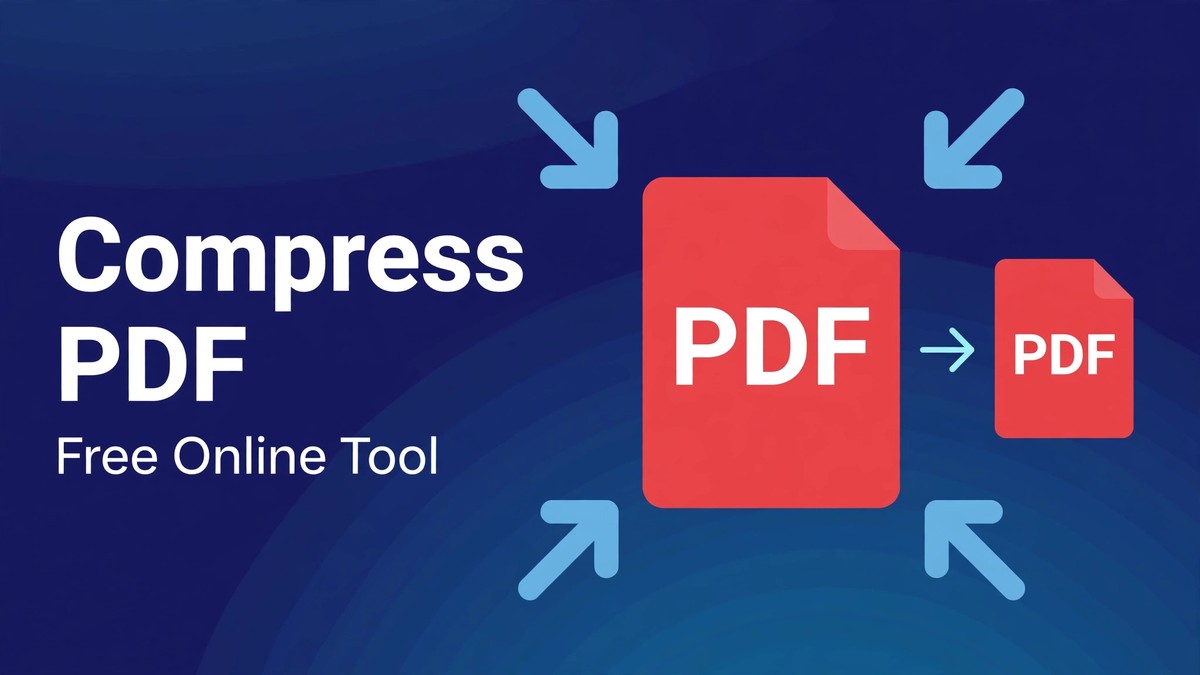
To compress a PDF means to make the file smaller by reducing the data it stores, without changing its pages, order, or text. The compressed file still has the same pages in the same order, but it takes up less storage and uploads faster.
Compression works in several ways. Images inside the PDF are often the biggest part of the file, so reducing image resolution or using more efficient image compression can save a lot of space. Unused fonts, metadata, and duplicate data can also be removed. Some tools also optimise the internal structure of the PDF so it stores the same content more efficiently.
It is important to understand that compression is not the same as deleting pages. Removing pages makes a file smaller by removing content. Compressing keeps all the content, but stores it more efficiently. If you need a smaller file and you can afford to lose some pages, use a Remove Pages or Extract Pages tool first, then compress what remains.
The goal of compression is a file that is small enough to share, but still clear enough to read and print.
Why PDF Files Become So Large
Most large PDFs are large because of images, not text.
Scanned documents are image-based, so every page is a full picture, even if the page contains only a few lines of text. A 50-page scanned report can easily reach 50 MB or more, because each page image is large.
Reports with photos, charts, and diagrams also grow quickly. High-resolution photos look beautiful, but they add megabytes to the file, even when the document will only be read on screen.
Some PDFs also contain embedded fonts, layers, and metadata that are not needed for everyday reading. These add size without adding visible content.
Understanding why a file is large helps you choose the right fix. If the file is large because of scanned images, compression will help a lot. If it is large because of many pages, removing unnecessary pages first will help more. In many cases, doing both gives the best result.
How to Compress PDF Files Online for Free
Compressing a PDF online is simple. Here is a step-by-step process using PDFEditFlow.
Step 1: Open the Compress PDF tool. Go to PDFEditFlow and choose Compress PDF from the list of PDF tools. No download is required.
Step 2: Upload your PDF file. Drag and drop the file into the upload area, or click to browse and select it from your device. Note the original file size, so you can compare it with the compressed result.
Step 3: Choose a compression level if the tool offers one. A light compression keeps quality high and reduces size a little. A stronger compression reduces size a lot, but may make images slightly softer. For most sharing tasks, a balanced or medium setting is the best starting point.
Step 4: Compress the file. The tool will process the PDF and create a smaller version. This usually takes a few seconds for small files and longer for very large files.
Step 5: Download and check the result. Download the compressed file, open it, and scroll through the pages. Check that text is still sharp, images are still clear enough, and no pages are missing. Compare the new file size with the original to see how much you saved.
That is the whole process. No software installation, no licence, and no account is needed for a basic compression task.
How Much Can You Compress a PDF?
How much a PDF shrinks depends on what is inside it.
Scanned PDFs usually compress the most, because their large page images can be optimised. A scanned file that starts at 50 MB might compress to 10 MB or less, while still remaining readable.
Text-only PDFs compress less, because text already takes up very little space. A text-only file that starts at 2 MB might compress to 1.5 MB, which is still useful for email, but the saving is smaller.
Image-heavy presentations and reports fall in between. Photos and charts can often be reduced significantly without becoming blurry, especially if the original images were higher resolution than needed for screen reading.
As a general rule, do not judge compression by percentage alone. A 90 percent reduction sounds impressive, but if the result is too blurry to read, it is not useful. A 50 percent reduction that keeps the document clear is much better. Always check the result visually, not just by file size.
Choosing the Right Compression Level
Most compressors offer a choice between quality and size, and choosing well matters.
Use light compression when quality matters most. This is the right choice for documents you plan to print, archive, or share with clients, where sharp text and clear images are important. The file will be smaller, but not as small as possible.
Use medium compression for everyday sharing. This is the best balance for emailing, uploading to portals, and storing on a phone. Text stays sharp, and most images remain clear, while the file becomes much easier to share.
Use strong compression only when size is the main problem. This is useful when you must fit under a strict upload limit, such as a 5 MB or 10 MB portal limit, and the document will only be read on screen. Check the result carefully, because small text and detailed images may become softer.
If you are unsure, start with medium compression. You can always compress again with a stronger setting if the file is still too large, but you cannot restore quality lost by over-compressing the original. Keep the original file until you are happy with the compressed result.
Compressing PDFs on Different Devices
An online compressor works on almost any device, because it runs in the browser.
On a Windows or Mac computer, open the tool in Chrome, Edge, Firefox, or Safari, upload your file, choose a compression level, and download the result. The larger screen makes it easier to compare original and compressed files and check quality.
On a tablet, the larger screen still helps you review pages after compression and confirm that text and images remain clear.
On a mobile phone, you can compress PDFs in your mobile browser. Upload the file from your phone storage or cloud drive, compress it, and download the smaller file. This is useful when you receive a large PDF by email and need to forward it, but the original is too large to send again.
Because the work happens online, you do not need a powerful device. Even an older phone or laptop can compress PDFs, as long as you have an internet connection and enough storage for the downloaded file.
Compress PDF vs. Other Ways to Reduce File Size
Compression is not the only way to make a PDF smaller, and combining methods often works best.
Removing unnecessary pages with a Remove Pages tool reduces size by removing content you do not need. This is the best first step if your file contains blank, duplicate, or irrelevant pages.
Extracting only the pages you need with an Extract Pages tool creates a smaller file that contains only the relevant part of a large document. This is useful when you only need a chapter or a form from a long file.
Splitting a large file with a Split PDF tool divides it into smaller parts that are easier to email separately. This is useful when compression alone is not enough to meet an upload limit.
Converting images to a lower resolution before you create the PDF also helps, but for an existing PDF, compression is simpler and faster.
A good workflow is: remove or extract what you do not need first, then compress what remains. This gives you a small, focused file without sacrificing quality unnecessarily.
Tips for a Clean Compressed PDF
A little care before and after compression gives a better result.
Keep the original file. Do not overwrite the original with the compressed version until you have checked the compressed file and confirmed it is clear enough. If the compressed file is too blurry, you can compress the original again with a lighter setting.
Name the compressed file clearly. Instead of keeping a name like compressed.pdf, use a name like report-compressed.pdf or invoice-small.pdf. A clear name helps you tell the original and compressed versions apart.
Check the first, middle, and last pages. Quality problems are not always on the first page. Scroll through the whole file, and pay special attention to pages with small text, detailed charts, and photos.
Check file size after compression. Compare the new size with the original and with the limit you need to meet, such as an email attachment limit or a portal upload limit. If the file is still too large, compress again or remove unnecessary pages.
Store compressed files with the original. Keep both versions together, so you can use the original for printing and archiving, and the compressed version for sharing.
Common Problems When Compressing PDFs and How to Fix Them
Most compression problems are easy to fix, because the original file is unchanged.
Problem: The compressed file is too blurry. Fix: Compress the original again with a lighter setting. Do not compress the already-compressed file again, because quality will get worse each time.
Problem: The file is still too large after compression. Fix: Remove unnecessary pages first, then compress again. If the file is image-heavy, try a stronger compression setting and check quality carefully.
Problem: Text looks fine, but images are blurry. Fix: Use a lighter compression setting, or accept a slightly larger file. Images lose quality faster than text when compressed strongly.
Problem: The file will not upload for compression. Fix: Check that it is a real PDF and not damaged. Open it in a PDF reader first. If it is password-protected, unlock it first, then compress it.
Problem: Pages are missing after compression. Fix: This should not happen with a proper compressor. Go back to the original file, compress again, and check the page count before and after. If pages are still missing, try a different tool or setting.
None of these problems require technical expertise, and most are fixed by compressing the original again with a different setting.
Is It Safe to Compress a PDF Online?
Safety matters, especially when your PDF contains personal, financial, or business information. A trustworthy online tool should process your file securely, should not require unnecessary personal information for a basic compression task, and should delete uploaded files after a short period.
As a general rule, avoid uploading highly sensitive documents to any online service unless you trust it and understand its privacy policy. For everyday documents such as assignments, reports, and general forms, a reputable free tool is normally fine. For extremely sensitive legal or medical documents, use a trusted tool you already know, or an offline method if your organisation requires it.
After compression, open the new file before you share it. Confirm that it contains all the pages you intended to share, that no private pages slipped in, and that the text and images are still clear enough. Store the compressed file safely and delete temporary copies you no longer need.
Practical Examples: Who Compresses PDFs?
Students compress assignments, portfolios, and scanned notes to meet upload limits for online submissions and email.
Office workers compress reports, presentations, and scanned contracts to email them to colleagues and clients without hitting attachment limits.
Freelancers compress invoices, project files, and portfolios to share them quickly and store them efficiently.
Job seekers compress CVs, certificates, and portfolios to attach them to online applications that limit file size.
Teachers compress worksheets, reading packs, and student work to share them digitally without filling up storage.
Small businesses compress receipts, statements, and customer forms to store them by month or by customer without using excessive storage.
These examples show that compression is not just a technical feature. It is a practical way to make PDFs easier to share, store, and use every day.
Frequently Asked Questions About Compressing PDFs
Can I compress a PDF for free? Yes. Free online tools such as PDFEditFlow let you reduce PDF file size without paying, installing software, or creating an account for a basic compression task.
Will compressing a PDF reduce its quality? It can, depending on the compression level. Light and medium compression usually keep text sharp and images clear, while strong compression may make images softer. Always check the result and keep the original until you are happy with it.
How much can I reduce a PDF file size? It depends on the file. Scanned and image-heavy PDFs often shrink a lot, while text-only PDFs shrink less. Check the result visually, not just by percentage.
Can I compress a PDF on my phone? Yes. Online PDF compressors work in mobile browsers, so you can compress PDFs on Android and iPhone without installing an app.
What is the difference between compressing and splitting a PDF? Compressing makes one file smaller while keeping all its pages. Splitting divides one file into several smaller files. Both are useful, and compressing is the right choice when you want to keep the whole document in one file.
What should I do if the compressed PDF is too blurry? Compress the original again with a lighter setting. Do not compress the already-compressed file again, because quality will get worse.
Conclusion
Compressing a PDF is a simple skill that makes large files much easier to share. Instead of struggling with email rejections, upload limits, and full storage, you can create a smaller file that still reads clearly and contains all the pages you need.
The key steps are: upload your PDF, choose a compression level, compress, and then check the result before you share it. Start with a balanced setting, keep the original until you are happy, and remove unnecessary pages first if the file is still too large. With a free online tool such as PDFEditFlow's Compress PDF tool, you can do this on any device, without software or sign-up, and without losing readable quality.
Next time a PDF is too large to send, compress it first. You will save time, avoid rejections, and share a document that is ready to use. Try the Compress PDF tool today and turn a bulky file into a lean, shareable PDF in minutes.